Divi Accessibility Plugin
The Divi Accessibility plugin enhances accessibility in Divi according to WCAG 2.0 guidelines.
Once you’ve activated the “Divi Accessibility” plugin in Plugins > All, an additional menu item Divi > Accessibility will be available.

Accessibility Settings
The plugin contains a number of settings found in Divi > Accessibility.
- ARIA support – This adds appropriate ARIA attributes across Divi elements & modules.
- Dropdown keyboard navigation – Enable smoother keyboard navigation for Divi dropdown menus.
- Fix labels – Fix missing labels & incorrect or missing assignments to their corresponding inputs.
- Focusable modules – Allow Divi modules such as Toggle & Accordion to be focusable with keyboard navigation. Hitting enter will open/close when focused.
- Keyboard navigation outline – Add an outline to focused elements when navigating with the keyboard.
- Outline color – Select a custom outline color. (Keyboard navigation outline)
- Screen reader text – Add plugin screen reader class used on certain labels & reverses Divi incorrectly applying display: none; on its own screen reader classes.
- Skip navigation link – Allow the user to skip over Divi navigation when using the keyboard and go straight to the content. (Requires screen reader text option to be on)
- Hide Icons – Hide all icons to screen readers so the text is read normally. (This may not work for all icons)
- Hide videos – Hide Video Player to screen readers.
- Aria support for mobile menu – Apply Aria attributes to the mobile (burger) menu to make it accessible.
- Fix duplicate menu IDs – Because Divi uses the same menu twice (Once for the primary menu and again for the mobile menu), the unique IDs are duplicated causing validation issues. This option prevents WordPress from adding a unique ID to the menu list items.
- Underline URLs – Easily find URLs when they are underlined.
- Exclude underlines from titles and buttons – If you don’t like titles, headings or buttons to be underlined you can disable it from here.
Tool Options
Additional tool options include:
Tota11y – When selected, this adds a small button to the bottom corner of the site to visualize how your site performs with assistive technology (visible to Admin users only).

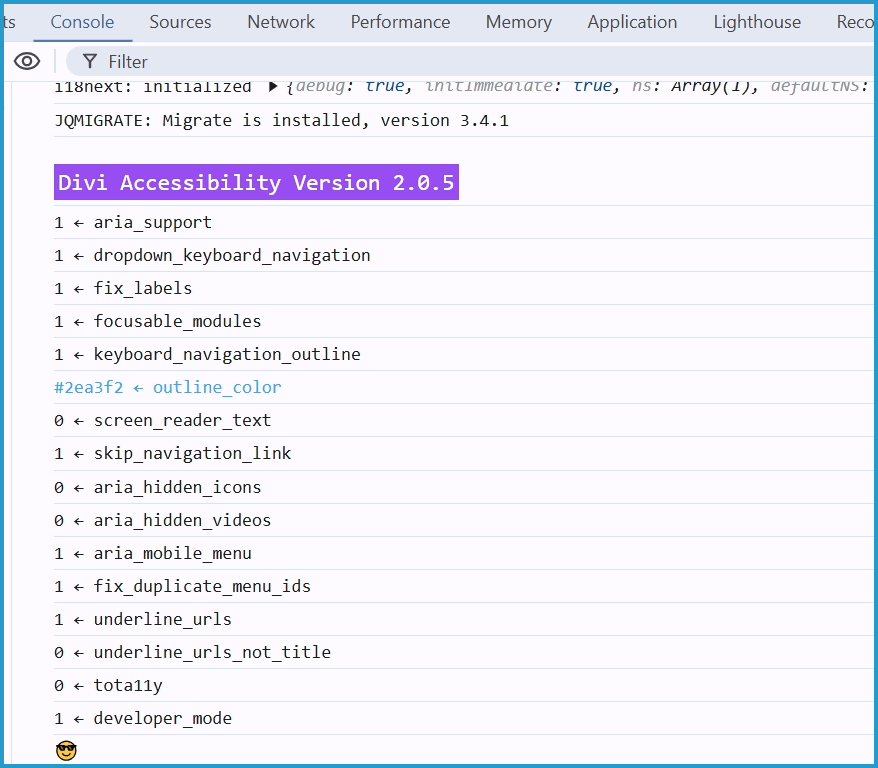
Developer mode – When selected, this will log plugin info to the console (visible to Admin users only).