Import & Export Links
You can import links from other blogs or systems into your blogroll via Tools > Import, and requires activating the OPML Importer.
Activate Plugin
To activate the OPML Importer plugin:
1. Go to Plugins > All
2. Search for “OPML Importer” and click on “Activate”

Import Links
You import links as follows:
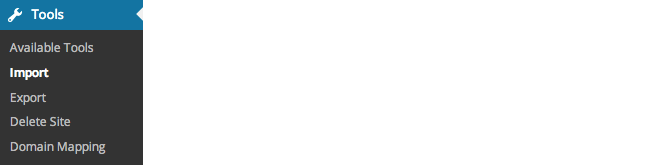
1. Go to Tools > Import
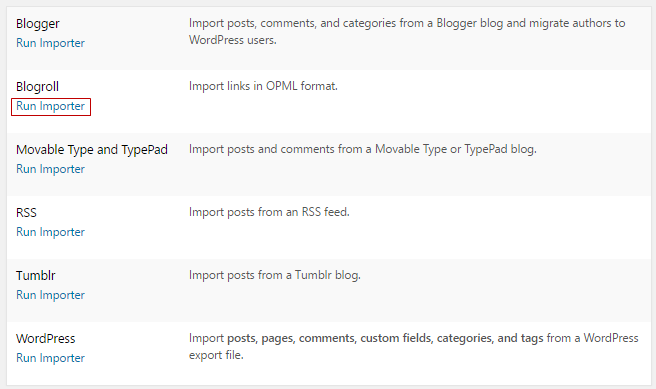
2. Click Run Importer under Blogroll on the Import screen.
3. Specify your OPML URL or upload your OPML file from your computer.
Your OPML URL is located at the following URL:
- http://yourblogtitle.edublogs.org/wp-links-opml.php
- http://yourblogtitle.wordpress.com/wp-links-opml.php

4. Select your blogroll category.
5. Click the Import OPML File button.
Export Links
You can export your links by visiting http://yourblogtitle.edublogs.org/wp-links-opml.php and then use the Save File option in your web browser, usually by clicking File -> Save As…
The wording varies depending on the browser. For example, Chrome is File > Save page as….
