Change site visibility
Site visibility controls who can and can’t view your site.
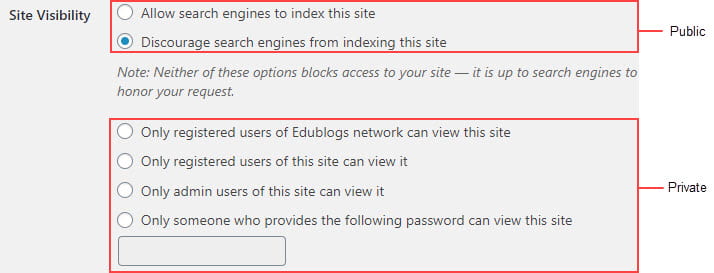
There are six privacy options:
- Two public options – allows any one who knows your site URL to view the content on your site.
- Four private options – restricts who can view your site using a login page.
RSS is automatically disabled on all private blogs to ensure your content is restricted to only people who should be able to read it.
The privacy of student blogs attached to a class blog via My Class is controlled in My Class > Settings.
The password privacy option is recommended if you want to make your site private but don’t want others to login to a user account to view your site.
Change Visibility
Site visibility is controlled in Settings > Reading.
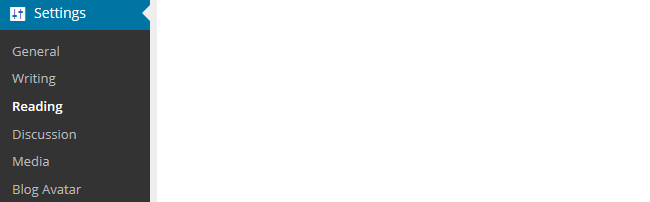
Select your preferred visibility option under Site Visibility and then click Save Changes.
Allow search engines to index this site
This allows any one who knows your site URL to read the content on your site and for your site to be indexed by search engines such as Google.
Discourage search engines from indexing this site
Allows any one who knows your site URL to read content on your site while blocking web crawlers so that your site is not indexed by search engines such as Google.
You use this option if site visitors to view your content without needing to log in but limit access to those that know the URL.
Only registered users of Edublogs network can view this site
This allows any one who is logged into their Edublogs account to view your site content.
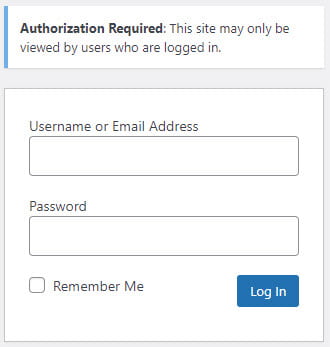
Visitors to your site will see the following notification if they aren’t logged into an Edublogs account.
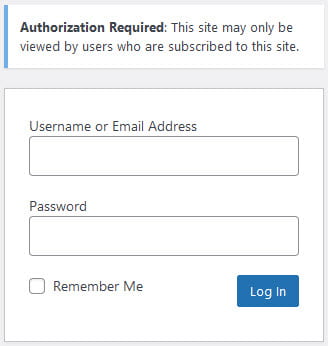
Only registered users of this site can view it
This visibility option is used if you want to restrict who can view the content of your site to only people who have been added as users to your site.
Visitors to your site will see the following notification if they aren’t logged into their account and haven’t been added as a user to your site.
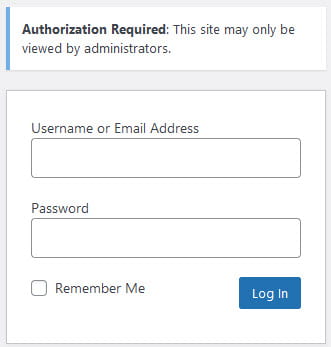
Only admin users of this site can view it
You use this visibility option if you only want people who have been added as admin users to your site to be able to view your site. This visibility option is most commonly used if you are setting up your site and want to hide it from others until you are ready to make it public.
People visiting your site will see the following notification if they aren’t logged into their account and aren’t an admin user on your site.
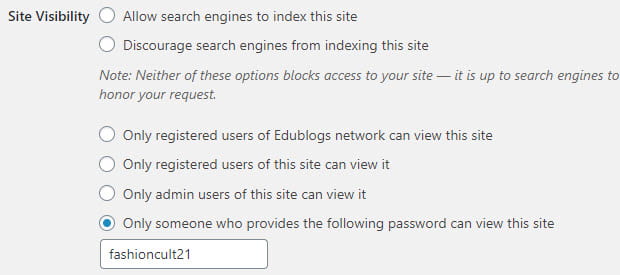
Only someone who provides the following password can view this site
This visibility option is used if you want to restrict who can view your site to only those who know the password.
This is the best visibility option to use if you want parents, students and other teachers to easily be able to view your site without having to log into an account.
People visiting your site will see the following notification.
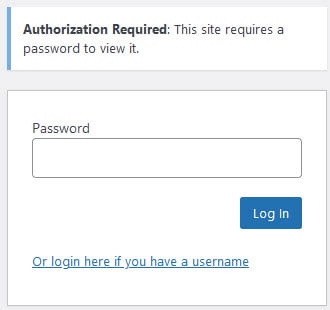
To view the site the person needs to add the password you added in Settings > Reading into the password field and then click Log In.
Media Privacy
In WordPress, site visibility settings control access to the site itself, but these settings do not extend to media files (such as documents) stored in the media library. Even if a site’s visibility is restricted, direct links to uploaded media may still be accessible.
CampusPress includes an optional media protection feature called “Secure files upon upload”, found in Settings > Media. This feature enhances privacy by controlling who can access uploaded media files based on your site’s Site Visibility settings.
Refer to Media Privacy: Secure Files Upon Upload for detailed instructions.
Note: If files need to remain strictly private, they should instead be stored on a secure platform such as Google Drive and linked from the site, so that access can be limited to the intended audience.
